



At MANUS, we’re dedicated to making CNC simulation intuitive and accessible. That’s why MANUSsim includes a suite of powerful, single-click features designed to simplify complex simulations, enabling precision and ease in every step. Here’s a look at these efficient tools that are now at your fingertips.
1. Cutting Information Display
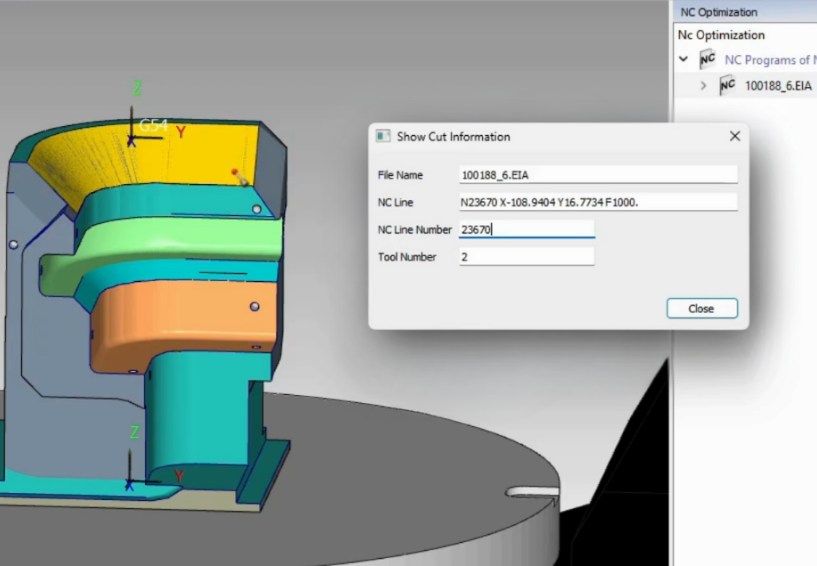
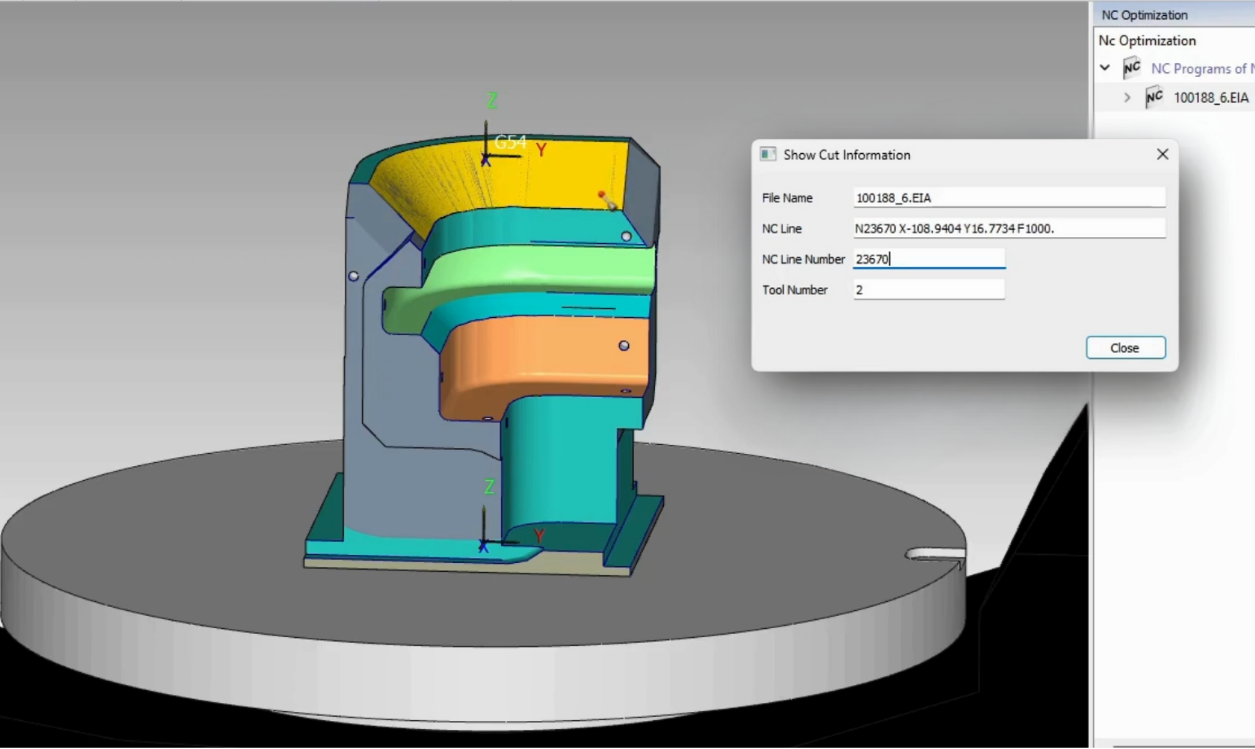
In MANUSsim, during your simulation, you have the option to pause at any moment and use the “Cutting Information” button to inspect cut surfaces. Clicking this button will open the “Show Cut Information” window, which provides detailed insights when you click on any cut surface. These insights include: NC File Name, NC Line, NC Line Number and the corresponding Tool Number responsible for the cut.
This feature is particularly useful for analyzing the cutting process of a specific surface, especially for identifying collisions, rapid cuts, and gouges within specific NC programs and lines.
2. Play All
The Play All feature is a game-changer when working with multiple NC programs. Instead of running simulations one by one, this function seamlessly queues and plays each program in succession, giving you a comprehensive overview without interruption. It’s an ideal way to review the entire machining process with a single command.
3. Change Tool Transparency
Visual clarity is critical during simulation, especially for identifying potential collisions or areas of concern. Change Tool Transparency allows you to adjust the transparency of the tool, providing a clearer view of the workpiece and tool paths. This added visibility makes it easier to spot and address issues before they occur on the actual machine.
4. Single Block
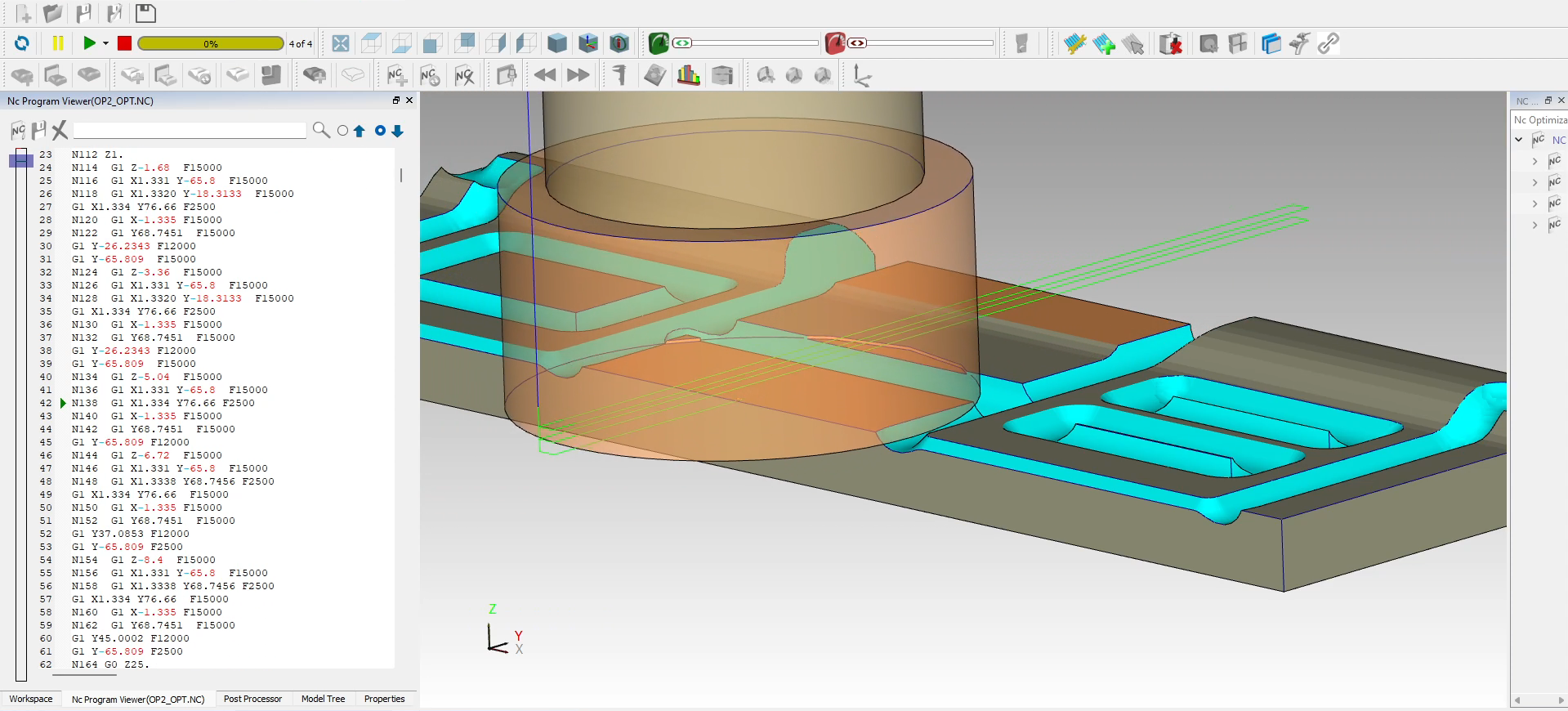
Precision requires control, and with the Single Block feature, you can play your simulation line-by-line. This tool is invaluable for troubleshooting specific segments, letting you analyze each NC line in detail without rushing through the entire simulation.
5. WPC (Workpiece Coordinate) Display
Understanding the exact positioning of the workpiece can significantly impact accuracy and efficiency. Our WPC Display shows the precise coordinates of the workpiece in real-time, which helps operators quickly set up and verify proper alignment within the CNC workspace.
6. Taking Measurements
For those crucial moments when exact measurements are needed, our Taking Measurements feature makes it easy to measure distances, dimensions, or features within the simulation environment. This tool is perfect for validating part specifications before cutting material, saving both time and resources.
7. Show ToolPath On/Off
This feature allows users to toggle the visibility of the toolpath during the simulation. When activated, the toolpath becomes visible, helping users track the exact path that the tool will follow during machining. This can be useful for understanding the overall movement of the tool and ensuring that the programmed path aligns with expectations. When deactivated, it offers a cleaner view of the simulation.
8. Current Status
The Current Status feature provides real-time information about the machine’s operational state during the simulation. This screen displays crucial details such as which tool is currently active, the exact position of the tool, the working speed, the NC code being executed, and the machine’s current values (such as spindle speed, feed rates, etc.). It’s an essential tool for monitoring the ongoing process and ensuring that everything is operating correctly throughout the simulation.
9. Cut Stock – Model Comparison
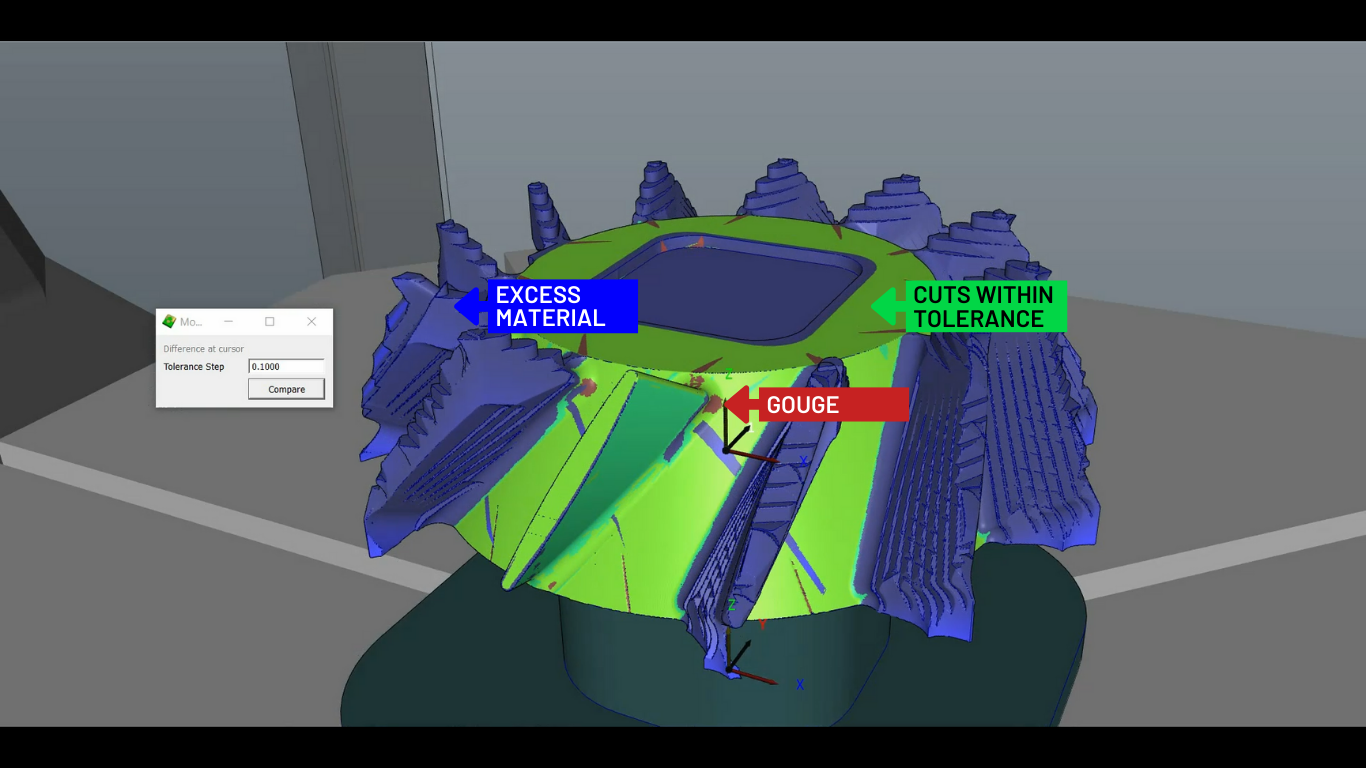
The Cut Stock – Model Comparison feature enables users to compare the cut stock to the original model in real time. This feature is useful for verifying the accuracy of the machining process by visually comparing the current state of the workpiece (cut stock) with the CAD model. It helps identify any deviations or errors that may have occurred during machining, ensuring that the final product matches the intended design specifications.
10. Machine and Setup Window (Double Window)
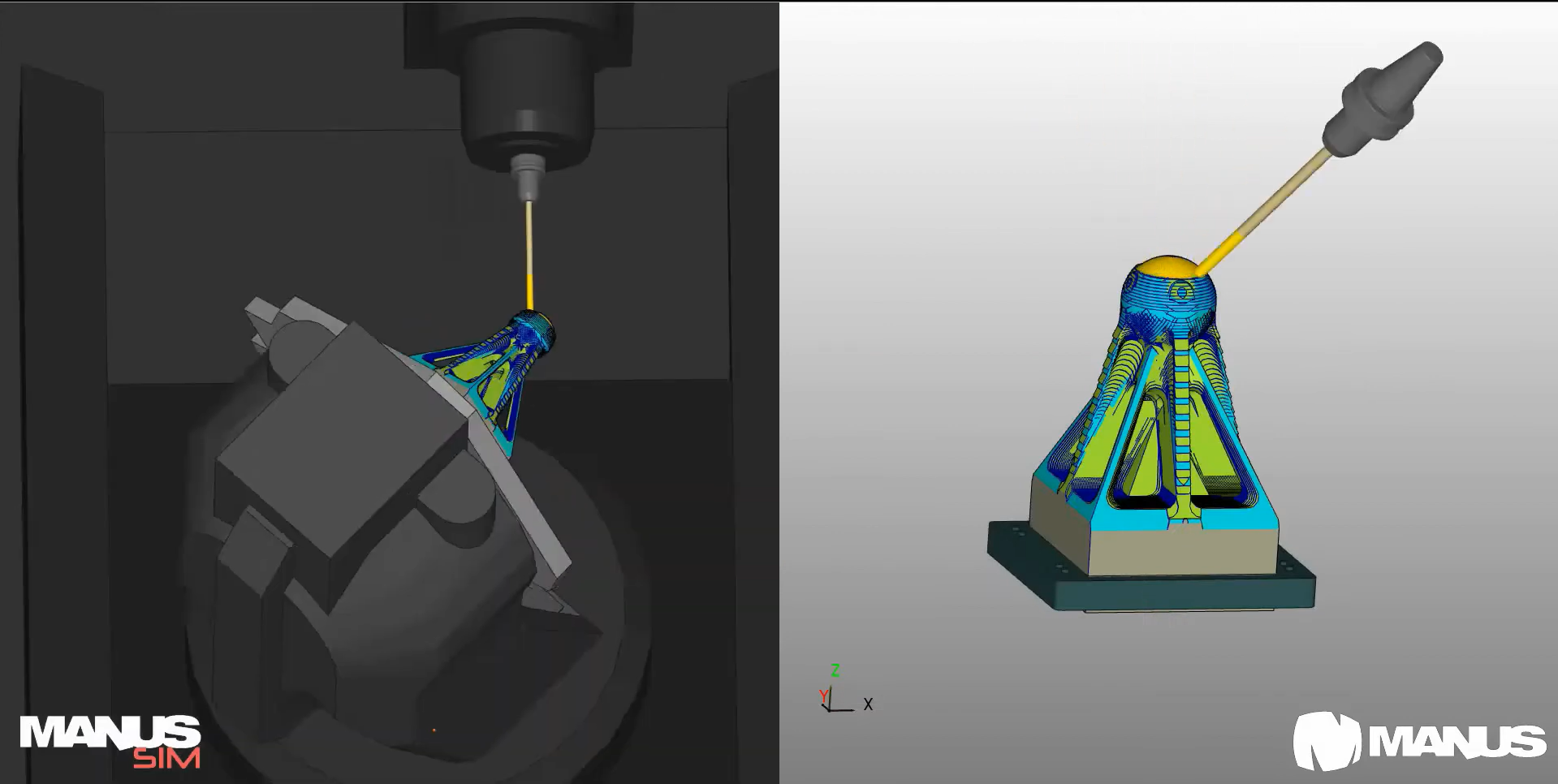
With the Machine and Setup Window feature, users can open a second window that exclusively displays the machine setup. This allows users to keep the setup process visible while also monitoring the simulation in the main window. The dual-window view enhances workflow efficiency, making it easier to keep track of both machine settings and the simulation without constantly switching between screens.
11. Get Report
The Get Report feature generates a comprehensive report detailing all aspects of the simulated part. The report includes valuable information such as the NC codes that were executed, any errors encountered during the simulation, and detailed tool data (e.g., tool diameter, length, tool number). Additionally, it provides important details about the CNC machine used in the simulation, including the number of axes and machine model. This feature is invaluable for documentation, troubleshooting, and analyzing the machining process for future improvements.
These features highlight MANUSsim’s commitment to user-friendly simulation that doesn’t sacrifice performance. With each tool accessible at the press of a button, you can streamline your workflow, reduce setup time, and gain confidence in the machining process before it even begins.